










































































































































Understand Your Content - Level 3
 |
Digital Asset RegisterThe information that you have gathered using levels 1 and 2 will be useful when working with your content in a wide range of ways. What you have created here is the beginning of a Digital Asset Register. A Digital Asset Register is a place for you to log more detailed information that you will need about the digital content you hold. You can set the scope for your register but it makes sense to include information about all your content in one place so you can easily find and identify the content you want to work on. A basic table format is the best way to record your information so it can be easily searched. A spreadsheet would be the best option for clarity and ease of searching. |
The table below details a range of information elements you may want to collect for each item in your register. If you have followed levels one and two, you may already be collecting some of this information. The elements used in levels one and two are not repeated below. Add the elements you want to include to your spreadsheet.
|
Element |
Description |
|
Access Restrictions |
Any restrictions on access, such as requested periods of closure by the owner. These may differ from the rights recorded in level two. |
|
DAR ID |
Also known as an identifier (used in level 2) or a reference code. If you’ve given your files identifiers (or renamed them using reference numbers), that code should be logged here. |
|
Data Owner |
This could be the creator (used in level two) or someone else who owns the content. This distinction is important when working out who own the rights to your content. |
|
Date |
Date the content was created. |
|
Date of transfer |
Date the content was transferred to the archive. |
|
Date Added to Register |
Date the content was added to your digital asset register. You could also include the initials of the person who made the change. |
|
Date of last register update |
Date the collection information was last updated on the register. You could also include the initials of the person who made the change. |
|
Entry Created by |
Who created the register entry. Initials may be enough here. |
|
Number of files |
The number of files in the collection. Only include this field if it will be useful to your group. |
|
Notes |
Any additional information that does not fit in one of the other elements. |
|
Risks |
Any risks associated with the content. For example, a particularly fragile format, or ownership risks. |
|
Sensitive Data |
A YES / NO field is useful here so you can quickly find out if content has sensitive data included. |
|
Size |
The size of the collection in GB. |
|
Status |
The stage of your process the content is currently on. For example, donated, catalogued, preserved, access provided. |
To find out more information about each element listed above, including alternative names and what information should be collected for each one, visit this page on Digital Asset Register templates.
The information you have gathered can now be used in a range of ways. For example;
-
The size information will help you work out how much storage space you need.
-
The format information will help you work out what hardware / software you need to process content.
-
Descriptions and date information will help you when cataloguing content.
-
Rights and restrictions information will help you work out what you can provide access to and when.
The important thing to note is you should only be collecting the information you need for your collection processes.
| Your Digital Asset Register should be updated every time new content is added to your collections. An annual review of the register will help you make sure that all elements used are still relevant and give you a chance to add more elements if you think they are needed. The register should be stored where everyone involved in working with your collections can access and use it. The annual review and access check of the register should be a task on your roles and responsibilities document you created at level one of the who does what topic. |  |
Keep Your Content – Level 1
 |
Storage ReviewAll technology has a shelf life, and this includes the medium or devices that your content is stored on. For example, external hard drives tend to have around a five-year life span and cloud storage will only be accessible as long as the bill is paid. Removable media, such as CDs and DVDs, can be easily lost or damaged. Hard disk drives can malfunction or break. Legacy storage media, such as floppy disks, may not be supported by contemporary computer environments. |
Just One Thing
Check that your current storage media for all your content is still accessible and functioning properly. Bear in mind that storage media can sometimes fail suddenly and unexpectedly. Replace or upgrade as needed to ensure your content stays accessible. Replacing storage before you have issues accessing content will save both time and money in the future. This includes making sure that payment for any cloud or off-site storage is up to date and those involved know what they need to do to keep it active.
Use this template to keep track of the storage you have and any changes you make.
Next StepsWorking with the current storage you have is a good first step but carrying out a review of available storage options will help you find out if a more suitable option is available. The next level will give details about the options you have and help you identify the best option for your set up. |
 |
Keep Your Content – Level 2
|
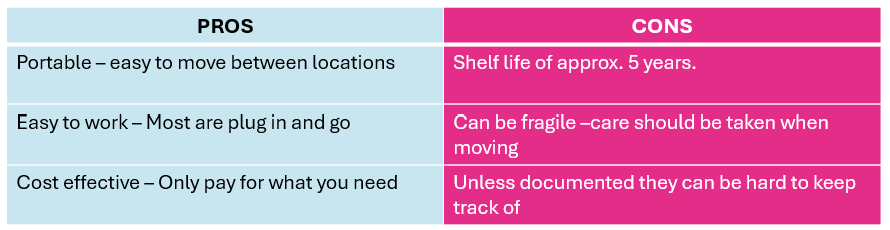
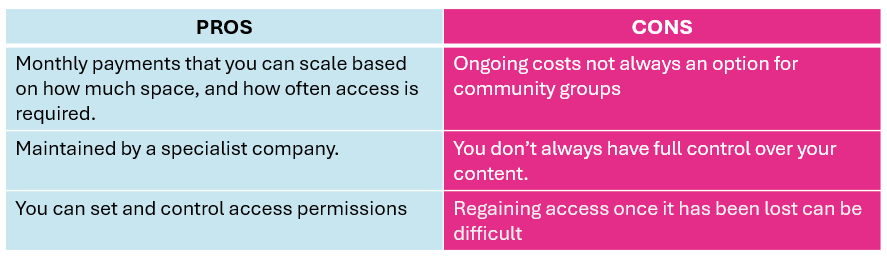
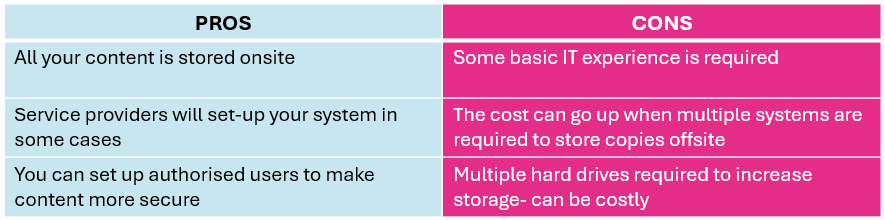
Storage OptionsNow that you know the storage you have is functional and accessible, it is worth looking into what options you have for long term storage of your content and any copies you make. Technology is constantly changing and researching the options currently available could not only save your group money but may also lead to a more suitable storage solution for your content. Some of the storage options currently available are detailed below along with some pros and cons of each. |
External Hard Drives
External Hard Drives are the same storage drives used inside laptops and desktop PCs, but they are encased independently and connect to a computer via an external connection, usually USB cable.
Third Party Cloud Storage Provision
These involve paying a fee (usually monthly) to a third-party service provider, to send copies of your digital content over a network. The provider may also maintain backups for you as part of the service.
Network Attached Storage
A NAS is a storage device connected to a network that allows storage and retrieval of data from a central location, usually on your premises. You can control access permissions to further protect your content.
Next StepsNow you know what storage you have, and what your options are, it makes sense to work out what storage you need and how you go about putting this in place. Level 3 will help you work out your storage requirements which will help you choose the right option for your group. |
|
Keep Your Content – Level 3
|
Storing Your ContentNow that you know what storage you currently have, and you know your options, it makes sense to look at what your current storage requirements are and how they might grow over time. Information gathered in your Digital Asset Register can help with this process. It will enable you to look at the best storage option for your content and put a plan in place to move your content should you ever have the funds and resources to do so. |
| Comparing the outcomes of your storage review against the pros, cons and specifications of the options you read about in level 2 will help you to choose the right storage option to suit your circumstances. Levels one and two of the ‘Control Your Content’ will also be invaluable here as you should work on the same principle of being able to access and easily move your content from anywhere you store it. Talking to suppliers will also be of use in this exercise as it will help you make sure your chosen system does what you need it to, and you are aware how the system works before you purchase. Further information about each storage medium can also be found online. | |
Control Your Content - Level 1
 |
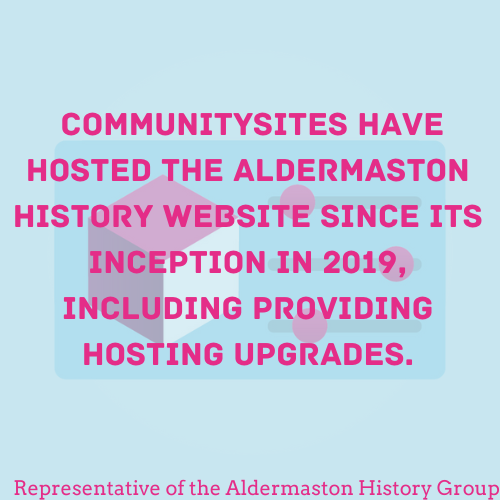
Exit StrategyHaving your digital collections locked into a particular system, app, service, or website can be a huge risk. Especially if that system or service is closed down, or you simply want to move it elsewhere. A common example is the use of Facebook groups by community organizations. They are relatively easy to setup and engage an audience, but if digital photos and other information is collected on a Facebook group, it’s very hard to extract that information so that it can be shared or preserved elsewhere. |
It is therefore critical ensure that any software, system, or website that you use has a clear exit strategy that details how you will get your data back if you decide to stop using them.
Just One Thing
If you decide to use a system to manage, preserve, or provide access to your content, make sure you understand the process to get your information back. This information should be included as part of any contract you sign. If it is not there, do not sign the contract and reassess your options.
Next steps…It is important to verify that you can successfully extract content before committing to using a particular system. Level 2 will explore how you can do this, what to look for as an adequate exit strategy and how to document it. |
 |
Control Your Content - Level 2
|
How to talk to SuppliersIf you are considering using any kind of software, system, or service to help you preserve and provide access to your digital collections, you need to make sure that you know what you need. Being able to talk to suppliers or creators will allow you to ask the right questions to make sure you get the most out of each conversation and ensure you get the product that is right for you, regardless of whether the software is free to use or paid for. |
The approach we recommend here is to take a holistic view of how you would like to manage your collections and what technological solution would enable you to do that. Considering the points below will help you to do this.
These points are broken down by the stages of the lifecycle to help you work through each step of your process and work out what is required.
Creation / Collection
|
Selection –
|
Description
|
Management –
|
Storage –
|
Preservation –
|
Use –
|
|
| Knowing what you need, what is a deal breaker and what are “nice to haves” will help your conversations with suppliers go smoothly and ensure you choose the right product for you.
Make sure you follow the advice in level one and don’t put your content anywhere that you don’t fully understand how you will get it back if you need to. |
|
Control Your Content - Level 3
|
Check Your ContractsIf you decide to use a commercial software or hardware provider for any aspect of your digital preservation work, it is very likely that you will need to sign a contract to agree to the company’s terms of service. It is important that you understand what you are signing and know exactly what will happen to your content once it is stored or processed by an external provider. |
Knowing how your data will be processed by the company is important as small print could be included within contracts that allows them to sell your contact information, or in some cases, use your content for something you don’t want it to be used for. If you are unsure, ask for help from your local or national archive who can offer advice and explain the jargon used to help to understand exactly what is being signed.
| If you sign a contract and realise it’s not what you initially thought you were signing, it can be difficult and costly to break, with some companies even charging early exit fees. Taking the time before you sign to understand all the clauses clearly will greatly reduce the risk of issues arising in the future. | |
Make Copies - Level 1
 |
Back up your content offsiteA huge range of threats can endanger your digital collections and the work that’s been put in to create them. Whether it’s computer failure, fire or flood, or simply failing to continue to pay for a cloud storage account, it’s important to not keep all your eggs in one basket. Making more than one copy of digital collections creates means your content is more likely to remain accessible. |
Just One Thing
A great way to start is to back up your digital collections to an offsite location. There are a range of ways to do this. Backing up to several external hard drives that are kept at different locations and rotated monthly is a manual approach. Replicating your content to the cloud using a simple cloud provider account is a more automated alternative but may have a higher cost.
Next steps…
Whichever method you choose, it’s critical to ensure that the backup process continues over time and that the additional copy, or copies, that you create are not forgotten about. At the next level we’ll consider how to replicate your content in a way that will mitigate all the common threats and ensure your digital collections will survive the test of time.
Make Copies - Level 3
|
Check your copiesHaving more than one copy is one way of ensuring your files will remain accessible over the long term. However, it is also important to regularly check that the content you are storing hasn’t been changed or damaged in some way. Digital content is more fragile than physical records and will become obsolete or “rot” as technology and formats change or if storage media becomes damaged. The process of file checking is called fixity checking. This short clip explains why and how this is caried out. There are several ways of doing this. |
If you store your content in a cloud environment, such as Amazon AWS or Microsoft 365, your data will be backed up and basic checks carried out as part of the subscription you pay. This does not produce reports, so you won’t know if any files have been changed or fixed during the checks, but your files should remain operational. You can also pay extra on your subscription to have more in depth checks performed and logged.
If your files are stored on another medium, or you want to run a check yourself, the easiest option is Fixity Pro. An easy-to-use program which allows you to schedule and run your own fixity checks while providing detailed reports. Fixity Pro is $50 (or your local equivalent) per year, so is a cost-effective option. This video shows you how Fixity pro works.
Corz is another tool option, but make sure you read the listed disadvantages before you attempt to use it as it may not be suitable for your purposes. There are other software options available which are free to run, but they can be complex to use, and in some cases, knowledge of your computer command line or terminal, or coding experience may be needed to make them work
Create/Choose your content Case Study
|
Your Name: |
Dr Milton Brown |
|
Community Group Name |
Kirklees Local Television |
|
Focus of Community Group |
Heritage, culture, diversity, inclusion, equality, equity, celebration, promotions and campaigns |
|
Type of Records held |
Documentaries, Short Films and Written stories |
|
Size of collections in GB |
5 to 6 thousand GB |
How did you get involved with your community group?
I got involved with our community groups through personal interest and outreach efforts. I am the founder of Kirklees Local TV (https://kirkleeslocaltv.com/) and established the grassroots media production company in 2012 to celebrate, commemorate and educate the broader communities, public, private and voluntary sector services of the rich heritage social-cultural capital that exists in grassroots communities. Our primary goal is representation, inculcation, raising the profile of marginalised communitas and creating equitable opportunities in minority and low socio-economic challenged communities.
Since 2012, we have involved over 700 volunteers in various projects. We now have over 4,500 videos and approximately 8,500 contributions to the website: blogs, articles, social media streams, podcasts, photographs and social media feeds.
How do you collect material for your collections?
Collecting material for our collections is an enjoyable, challenging and meticulous process. We employ several methods to gather relevant items:
Donations: We receive donations from community members and local organisations who wish to contribute to KLTV’s platform.
Fieldwork: Our volunteers engage in fieldwork, such as visiting historical sites or conducting interviews, to gather firsthand material for the website.
Training & Development: We develop our volunteers in photography, videography, editing, oral history techniques, journalism and media, archiving, and digital preservation.
What processes are in place to manage and process your collections?
Our process of collecting and managing our collection is threefold:
Acquisition: We first assess and acquire materials through the methods mentioned above. Each item is evaluated for relevance, condition, and authenticity before deciding how, who, and where we will store the new material.
Cataloguing: Once an item is recorded, documented, or collected, it is meticulously catalogued in the KLTV archive. The process involves documenting its origin, condition, and other relevant information. Each item is assigned a unique identifier to ensure it can be easily located and referenced by our Chief Editor and others in the company. KLTV’s current archive content is available for viewing directly from the website and encompasses various documentaries, videos, podcasts, articles and images (https://kirkleeslocaltv.com/).
Storage and Access: Finally, items are stored in a controlled environment to preserve their condition. We use specialised storage solutions tailored to the needs of different types of materials. We have a collection at the Heritage Quay Archive based at the University of Huddersfield (https://heritagequay.org/archives/WYA/?view=item) and with the Community Achieve Heritage Group (CAHG) as noted in their database as numbers 683 and 779. You can access the database here: https://drive.google.com/drive/folders/1WmJ3H-ixDFRk1PmI8DXDYEiPR3h49x8r.
The University of Huddersfield Heritage Quays has acid-free boxes for paper climate-controlled rooms for delicate artefacts. The university and CAHG provide access to our collection, which is managed through a digital database, allowing researchers to locate and request items for study.
How do you preserve your collections?
The Heritage Quay Archive based at the University of Huddersfield and the Community Achieve Heritage Group (CAHG) provide a range of guidance and support in the preservation of our collections. The Heritage Quay Archive support our digital preservation work. Additionally, since 2020, we have built a healthy relationship with the West Yorkshire Archive Service, based at the West Yorkshire History Centre in Wakefield. They continually advise us on good practices when developing and preserving community archives.
Subcategories
Template for building a Business Case
This section provides guidance on the content that will be useful to include in your business case, but it will likely need to be adapted to the structure used in your organization’s template.